AutoAlt brings image-description work into the Shopify catalog workflow, for new images and the existing backlog.
A growing Shopify catalog can have thousands of images but little useful alternative text. Writing each description manually is slow; generating all of them without review risks replacing one problem with another. A useful workflow needs to answer three questions: Which images are missing descriptions? What should the description say? Who checks it before the store relies on it?
Alt Text Generator ‑ AutoAlt is a Shopify app from webAufstieg GmbH for generating image alt text automatically or in bulk. Its Shopify listing names product, blog and page images, product-data-assisted descriptions and multilingual output. The official Shopify documentation adds the operational details: account connection, settings for new or updated products, a bulk generator, overwrite/skip choices and an editing history.
This guide follows the work from account connection through automatic generation, a bulk backlog and final edits. The aim is useful descriptions at catalog scale, with control over the text your customers encounter.
Start with an image inventory
Not every image needs the same treatment. A product hero photograph, a close-up of a material detail, a decorative divider and a screenshot of a size chart serve different purposes. The merchant should first identify the image's role and the text already attached to it. The goal is not to fill every empty field with a repeated keyword; it is to make meaningful content understandable when the image is not seen.
The AutoAlt listing describes coverage for images in products, blogs and pages. Its documentation describes processing existing images from a bulk interface and automatic generation for new or updated product images. Before launching a storewide job, take a small sample from each relevant image surface and check whether the current alt text is absent, generic or already good.
Swipe horizontally to read the full table.
| Image role | Useful description may include | Avoid |
|---|---|---|
| Primary product view | Product type and the distinguishing visible attribute | A string of search keywords with no image description |
| Variant close-up | The color, finish or detail actually shown | Copying the same line onto every color variant |
| Instructional screenshot | The step or control the screenshot teaches | “Screenshot of website” without the relevant action |
| Decorative accent | Only information necessary for the page's meaning | Forcing a sales phrase into a purely decorative image |
Use this image-role checklist to choose the right description; it is not an automatic classification promised by AutoAlt. Then check how the installed theme exposes the saved text.
Connect the store and choose automatic coverage
According to AutoAlt's Shopify setup guide, the merchant connects a Shopify store to an AutoAlt account using an existing API key or an email verification flow. In Settings, an existing-account user enters the key and selects Connect & Save. The email route uses a verification code and saves the connection after login or registration. Available credits then provide a useful first check that the store is connected.
The app settings then allow automatic generation when a product is added or updated. That is useful for a team publishing new catalog content every week, because the alt-text task becomes part of the creation flow. It also creates a governance question: if a product editor revises a description, should the next update regenerate and potentially replace a carefully edited alt text? Review the setting and the actual overwrite behavior before enabling it across the whole catalog.
A controlled first week
Day 1: connect and sample
Connect the AutoAlt account, confirm available credits and choose a handful of representative product images. Generate text and inspect what was written.
Day 2: set the rule for new work
Decide whether new or edited products should trigger generation. Document who checks those outputs and where corrections are made.
Later: process the backlog
Run a bounded bulk batch for older images, compare missing-only and overwrite settings, then expand only after the sample is accurate enough for the store.
“Automatic” should mean fewer repetitive first drafts, not absence of review. A product can change faster than a cached or generated description; a checkout or order decision should not depend on an inaccurate image caption.
Process existing images without erasing good text
The Bulk Alt Text Generator displays a selected-image count, the number missing alt text and available credits. It offers controls for overwriting existing text and skipping previously processed images. These are particularly important when a store has already paid for a partial accessibility review or has carefully written text for priority products.
Choose the batch rule before clicking generate
Missing descriptions only
Best starting point when some images already have meaningful alt text. Review the generated sample before expanding to the whole collection.
Replace existing text
Use only when the existing descriptions are demonstrably poor and you have a way to compare or restore important copy. A bulk overwrite can erase good human-written distinctions.
Skip processed images
Useful when rerunning a batch after an interruption. Confirm the skip definition in the app's current interface rather than assuming it means every image is already satisfactory.
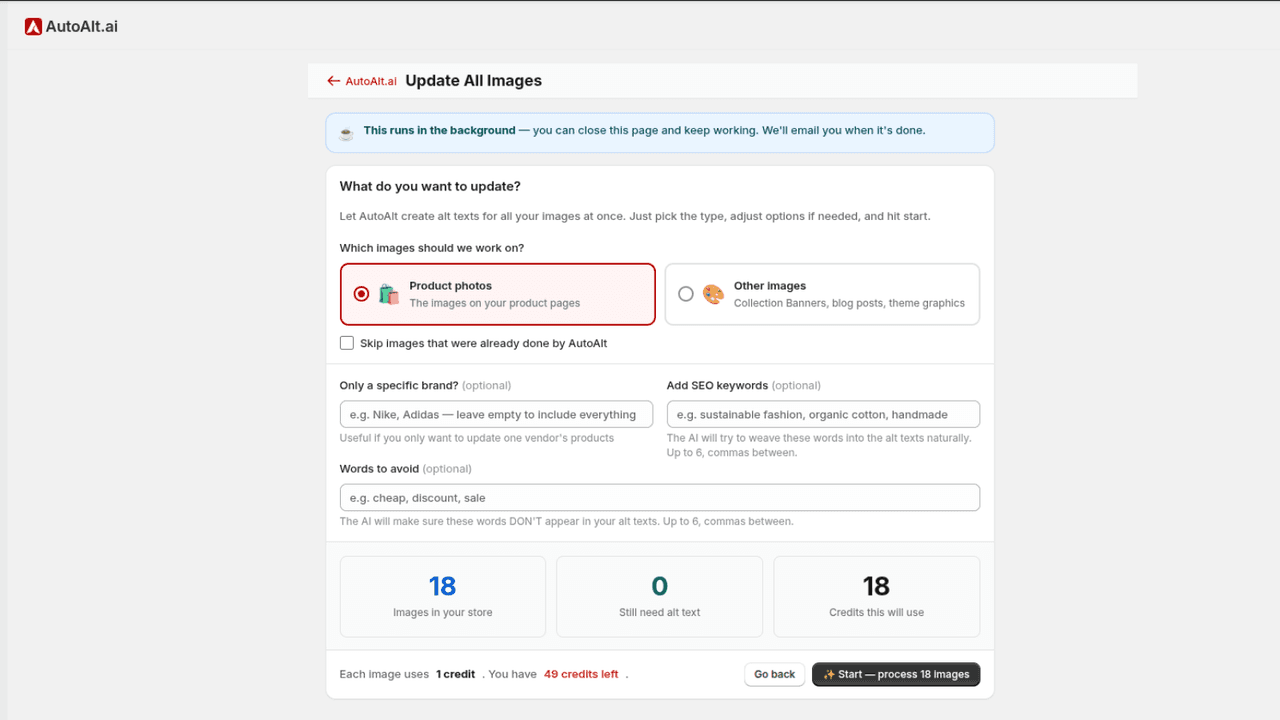
Choose the image group and batch options before starting. The credit estimate makes the size of the job visible alongside the descriptions still needed.
The official documentation also describes selecting products in Shopify's product list and choosing Generate Alt Text – AutoAlt.ai from Actions. That can suit a targeted collection update. For an existing catalog, begin with a missing-text batch, preserve useful descriptions, and then inspect a few product views and close-ups before expanding. Product descriptions, visible page copy, image quality and technical rendering remain separate SEO work.
Give the AI useful context, then review the result
Two catalog jobs need different starting points
A new-product workflow begins with work the team has not yet published. A backlog workflow begins with existing pages that may already contain careful descriptions. AutoAlt's Shopify documentation describes both automatic product add/update processing and selected or bulk generation. The practical difference is what the editor needs to preserve before starting.
Choose the route that matches the catalog job
Publishing a new collection
Prepare the product details and image variants first. Connect the account, choose the automatic settings appropriate to new work and publish a small representative sample. Review the generated descriptions alongside the photos before relying on the same workflow for the remaining collection.
Improving an existing collection
Inspect saved descriptions before selecting a batch. Separate missing text from text that is already useful; then choose the appropriate overwrite and skip options. Begin with a bounded group, review the history entries and correct exceptions before expanding the job.
For a suggested new bag collection, the hero photograph might show a black tote from the front, while the second photograph shows its inside pocket and the third shows the strap attachment. These are three different information tasks. An editor should not approve three identical descriptions simply because the product name is correct. The useful detail changes with the photograph: overall appearance, interior construction and attachment detail. This example is editorial guidance, not an actual AutoAlt output.
Read the batch screen before spending credits
What to inspect in the official batch screenshot
Image group and selection
Confirm that the chosen images belong to the collection or surface you intended to improve. A product-level selection can contain several photographs; the number of products alone is not a description budget.
Existing-text controls
Check whether the job replaces saved text and whether previously processed images are skipped. These choices protect different things: useful existing copy and work already processed. Neither setting means the remaining descriptions are automatically accurate.
Keywords and estimated work
Use product-specific context without forcing promotional language into every photograph. Compare the displayed work estimate with the available credits, then start with a sample the team can review rather than a catalog-wide job it cannot inspect.
The history screenshot is the second half of that process. Read the image preview, generated description and status together; use the documented inline update route to correct a particular error. A completed processing status establishes that the task ran, not that the wording captures the right color or detail. Keep a short exception list for the sample so the next batch benefits from the review.
Correct a description without losing its useful information
Suppose a generated line accurately identifies the tote and its black handles but incorrectly calls the fabric leather. The edit should fix the material using the product information and the visible image, while retaining the distinguishing view and handle detail. Replacing the whole line with “Black tote bag” would remove an error but also lose useful information.
When a measurement matters, confirm it from the product record; do not infer exact dimensions from a photograph. When a chart contains essential instructions, make those instructions available as readable page content as well. The description should help the customer understand the image's role, while the product page continues to carry the detailed buying information.
AutoAlt's docs describe optional SEO keywords, negative keywords, prefix/suffix text and a custom prompt. These are steering controls, not a license to make the image say things it does not show. If a product has multiple finishes, a generated description should reflect the visible variant. If a chart contains essential measurements, a brief generic label may not transmit the information the customer needs elsewhere on the page.
Here is an illustrative editorial example, not an output from an AutoAlt installation:
Swipe horizontally to read the full table.
| Starting text | Better reviewed text | Why |
|---|---|---|
| “Best eco bag sale cheap tote” | “Natural-canvas tote bag with long black shoulder straps” | Describes visible content instead of stacking promotional terms. |
| “Image 12” | “Close-up of the tote's stitched interior pocket” | Distinguishes this detail image from the primary product view. |
The processing history lets a merchant edit generated lines and save changes with Update, without reopening every product. Search for the image, compare the preview and description, then correct the specific detail that is wrong. For the tote example above, correct the material while retaining the accurate handle and view details rather than replacing the entire description with another generic sentence.
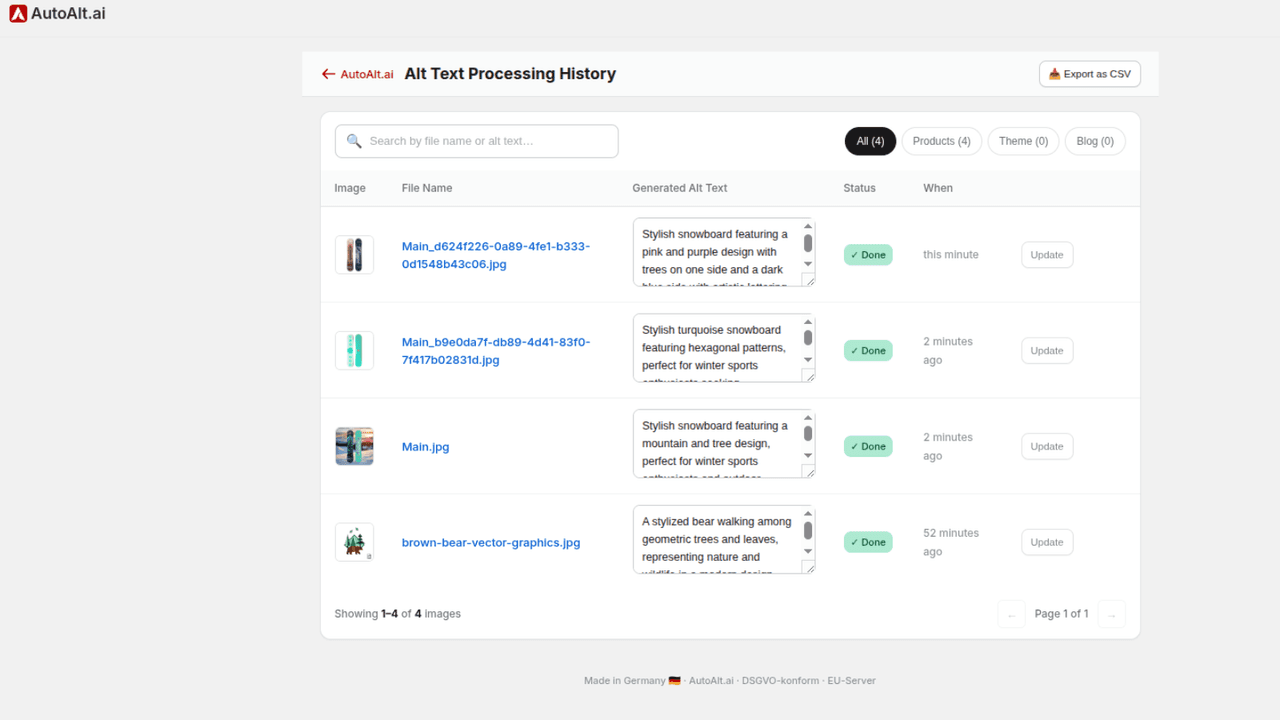
Review the image and its description together, then save a correction from the history row. This keeps a bulk job manageable one exception at a time.
Check for mismatched colors, repetitive copy, irrelevant keywords and missing instructional detail. The best draft is the one a person can correct quickly.
Use languages and credits as planning constraints
The exact AutoAlt Shopify listing states support for 100+ languages and a free allowance of 50 credits per month, with one credit per alt text. As of October 9, 2026, the listed monthly plans are:
Swipe horizontally to read the full table.
| Plan | Monthly price (USD) | Listed image allowance |
|---|---|---|
| Free | $0 | 50 credits per month |
| Starter | $4.49 | 100 images per month |
| Professional | $16.99 | 500 images per month |
| Business | $52 | 2,000 images per month |
The paid entries also describe credit rollover and additional credit packs. Use the live plan table for current purchase terms. An image count is not a product count: multiple variants and detail shots create multiple description tasks.
For a simple planning example, 20 products with three images each mean 60 image descriptions if every image needs new text. That arithmetic is an editorial estimate, not an AutoAlt invoice. Existing good descriptions and the batch's selected scope may reduce the work; repeated generation can add work. Read the displayed credit estimate before starting rather than budgeting from the number of products alone.
For a multilingual store, decide which storefront languages and image sets matter first. A translated product title does not automatically prove the generated alt text matches what the image shows in another market. Sample the descriptions in each priority language, particularly for sizes, materials and use instructions. Do not confuse the app's language-generation capability with automatic localization of the entire Shopify storefront.
Accurate alt text is one part of accessibility and SEO, not a guarantee of compliance or search rankings. Its immediate value is more concrete: an image description identifies what is shown and distinguishes a meaningful detail from the other images on the page.
Build a repeatable human review pass
A practical review queue can be small and specific. Assign the image owner to check visual accuracy, a content editor to check language and duplication, and a storefront reviewer to confirm the text appears where expected. The same person may fill multiple roles in a small team, but the checks should still happen.
Review five things before accepting a batch
Correct image
Does the line describe the actual photograph or graphic, including the correct variant?
Useful detail
Would the description help someone understand what matters about this image, rather than repeat the product title?
No invented claims
Are materials, dimensions, included accessories and performance claims supported by approved product information?
Appropriate language
Is the target-language line natural and consistent with the store's terminology?
Storefront result
Has the team verified the saved text in the Shopify record and the rendered theme where customers encounter it?
Document the exceptions. A decorative asset, a complex chart and a product close-up may need different editorial treatment even if the generation tool can produce a sentence for all three. That judgment is the difference between a filled field and helpful content.
Frequently asked questions
Does AutoAlt work on images already in my store?
Yes. The documentation describes bulk processing and product-list selection. Start with a controlled batch and check overwrite/skip settings first.
Does it automatically write alt text for new products?
The official setup guide describes automatic generation when products are added or updated, after the store is connected and the relevant setting enabled. Test that behavior in your own workflow before treating it as complete coverage.
Will it guarantee accessibility or higher search rankings?
No app description can guarantee those outcomes for every store. Generated text needs accuracy review, and accessibility and search visibility involve more than one image field.
How should I budget a large bulk run?
Count the image descriptions to generate, not just products. Compare that count with the current credit and plan terms, then process a smaller representative batch before committing to the full catalog.
Alt Text Generator ‑ AutoAlt can remove repetitive first-draft work from a growing Shopify catalog. The durable value comes from combining its automation with careful choices about what to overwrite, what to describe and what a person still needs to check.