
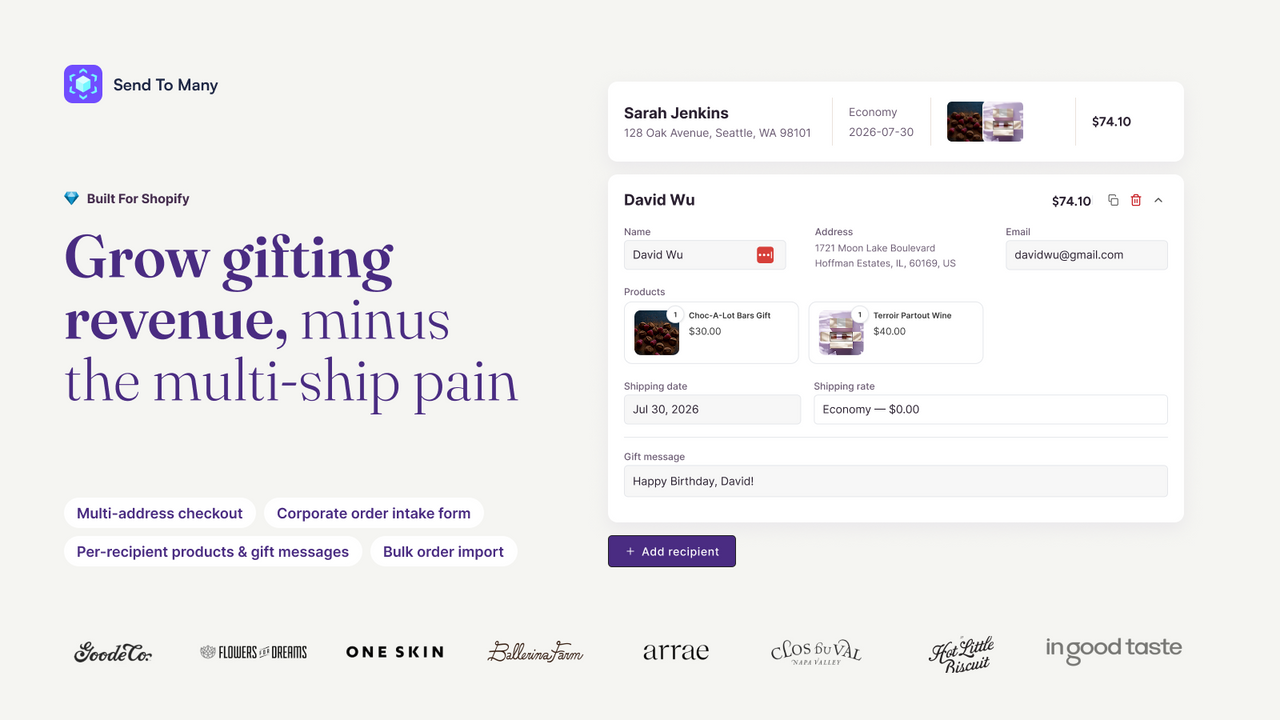
Buying gifts for several people should not mean rebuilding the same cart several times. For a merchant, a corporate gift list creates a different problem: turning names, addresses and product choices into orders the warehouse can fulfill.
Send To Many Bulk Order Import addresses both sides. Shoppers can send to multiple addresses in one transaction; staff can start with a spreadsheet. The distinction matters because a shopper choosing gifts and an account manager handling a recipient list do not need the same interface.
This guide is part of a reciprocal content collaboration with Even Better Apps. It explains the app's documented workflows rather than presenting a merchant test or a revenue forecast.
Two starting points, one multi-recipient order
Swipe horizontally to read the full table.
| Starting point | Who does the work? | What they bring | Why use it? |
|---|---|---|---|
| Storefront multi-recipient checkout | The shopper | Products, recipients and gift details | Let one buyer organize several deliveries without repeating the purchase |
| Spreadsheet upload in admin | The merchant's team | A recipient list and product assignments | Turn an existing corporate gifting or sample-send list into manageable orders |
The key-concepts guide calls the overall job a Send. Each recipient has an individual Shopify order with its own address and fulfillment. An aggregate order brings the purchase together for the gifter. That separation lets the buyer pay for a grouped purchase while the operations team handles distinct parcels.
Do not treat the aggregate order as an extra shipment. Its job is to connect the recipient orders and collect the combined payment. This is also why order count, recipient count and sales reporting need to be discussed separately.
Let shoppers organize their own gifts
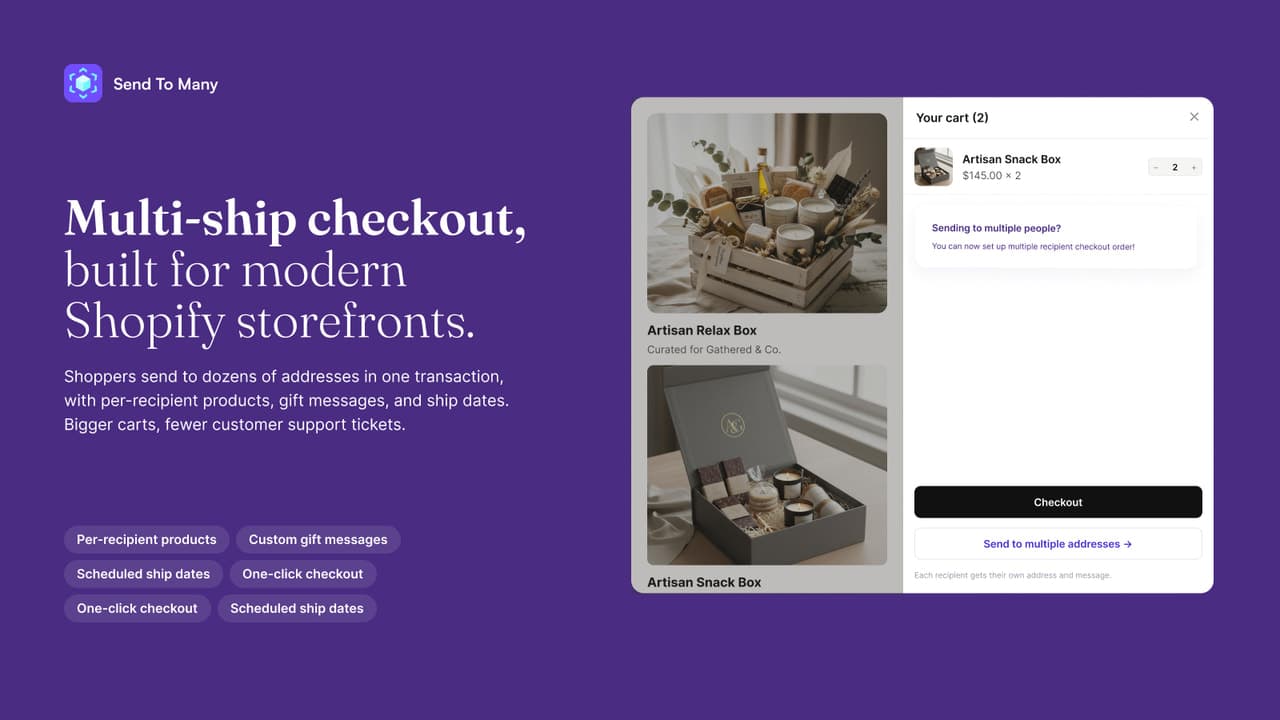
The multi-address option gives shoppers a separate path for arranging several recipients.
The storefront setup tutorial describes recipient cards with required name and address fields. A merchant can decide whether to collect recipient email or phone details and whether to offer a personal gift message.
A gift note is useful only if the packing team can find it. The documented settings let you choose where the message is stored, including the order note and additional details. Select the location that matches your actual packing workflow, rather than enabling a field simply because it is available.
Shipping-date selection can apply one date to the whole Send or a different date to each recipient. The setup guide also describes availability controls. A date picker is a request interface, however—not a promise that a carrier will deliver on that date. Explain your shipping and delivery terms clearly next to the shopper's choice.
Storefront checkout is available on monthly or annual Send To Many plans. The tutorial identifies some advanced configurations as Pro-or-higher features. Start with the documented app block on a test page, check the full purchase journey, and then make the live entry point easy to find. This is an app workflow, not a claim that every Shopify checkout customization is available on every store plan.
Turn a spreadsheet into recipient orders
Swipe horizontally to read the full table.
| Spreadsheet detail | Documented import behavior | Preparation that prevents confusion |
|---|---|---|
| Column headings | Map your existing names during upload | Keep product/variant pairs adjacent and map quantity to the correct product |
| Product selection | Match to catalog items and confirm the selection | If every recipient gets the same item, select it in the wizard instead of repeating it |
| Quantity | Defaults to one per product per recipient when no quantity column is supplied | Include a mapped quantity column when recipients need different amounts |
The format guide supports Google Sheets, Excel, CSV and Numbers. For Sheets it requires the specific tab's full URL and “Anyone with the link can view”; it says the file can be secured again after upload. Because recipient addresses are sensitive, review that sharing decision with the list owner. If opening the link is inappropriate, use an approved file-upload route rather than widening access casually. The guide recommends downloading the specific tab as CSV when Sheets import has problems.
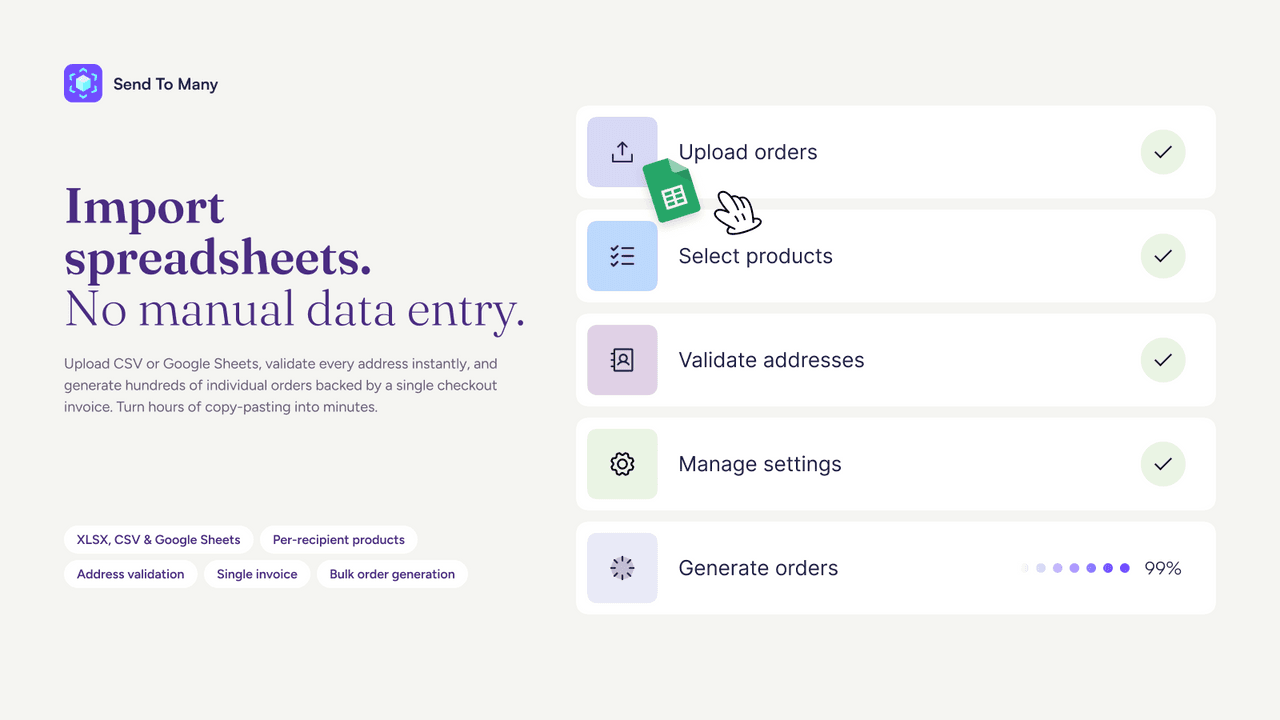
Recipient records move through product selection and address checks before order generation.
The file-format guide explains column mapping and product matching. Your spreadsheet should distinguish the recipient's information from the product they receive. That makes discrepancies easier to resolve before an order reaches fulfillment.
Prepare the list around the shipment
Recipient information
Keep names and delivery addresses complete. Preserve postal codes as text where necessary so spreadsheet software does not remove meaningful leading zeros.
Product and variant choices
Identify the intended catalog item and its variant. A size or color choice needs to match the recipient's product, not sit in an unrelated column.
Packing and timing details
Include gift notes or relevant dates when your workflow needs them. Map them to places your fulfillment team already reads.
Send To Many can match uploaded product information to the Shopify catalog, with confirmation during import. If everyone receives the same item, the documentation allows that product to be selected in the upload workflow instead of repeated throughout the file. Saved import formats reduce repeated column-mapping work when later files use the same structure.
This is more useful than treating CSV upload as a single “import” button. The important work is resolving the recipient, product and delivery details while they are still visible together. Avoid generating orders from an unreviewed list just because the file uploads successfully.
Corporate inquiries are not completed purchases
The official documentation separates the inquiry form from invoicing and order management. That is the right way to think about corporate gifting: an interested company may still need to agree on products, budget, recipient information and timing before paying.
Use the form as a structured start to that conversation. The sales team can follow up on missing information and progress the inquiry into an order and invoice. Do not describe form submission as payment, shipment or an automatically accepted delivery promise.
For repeat corporate work, decide who owns the final recipient list and when changes stop. A list that is “almost ready” can still contain a different address or variant from the version the customer eventually approves. Keep that approval clear even when the app handles the order creation.
Keep fulfillment and reporting understandable
Recipient orders are the operational units that the warehouse ships. The aggregate order is the buyer-facing purchase that connects them. The order concepts also explain that reporting requires the right separation so aggregate and recipient records are not mistaken for additional revenue.
During setup, ask the accounting team to review how a Send appears in your Shopify reports. The goal is straightforward: a grouped purchase should not look like several independent sales merely because it produces several order records.
Notifications deserve the same care. A recipient may need tracking information without seeing an unexpected gift confirmation, while the gifter may not want every parcel update in their inbox. The app documents notification controls; choose the intended experience instead of leaving the communication strategy implicit.
Plans are priced around child orders
The Shopify listing, checked October 7, 2026, uses generated child orders as the usage unit—not spreadsheet rows uploaded or the number of corporate customers.
Swipe horizontally to read the full table.
| Plan | Monthly subscription | Included child orders | Additional child order |
|---|---|---|---|
| Pay As You Go | Free to install | 25 per month | $1 |
| Starter | $50 | 75 per month | $0.75 |
| Growth | $100 | 200 per month | $0.60 |
| Pro | $250 | 800 per month | $0.40 |
Pay As You Go supports the spreadsheet workflow. Starter adds storefront multi-recipient ordering and the gifting inquiry form. Growth adds delivery integrations and team permissions; Pro includes Shopify B2B support. The listing shows a 14-day trial under Starter. Check the current plan terms before choosing, especially if a particular checkout configuration or delivery integration is essential.
For planning, estimate how many recipient orders your gifting work produces across the month. One large corporate Send can consume many child orders, while several small purchases may consume fewer. Subscription cost also remains separate from products, postage and other services.
Frequently asked questions
Can one shopper send different products to different people?
The app describes per-recipient product customization, gift messages and shipping dates. Configure the options around the products and delivery terms your store can actually support.
Can staff start with an existing spreadsheet?
Yes. The upload workflow includes column mapping and product matching. Use the official file-format guidance and review the mapped information before generating orders.
Does one payment mean one parcel?
No. Send To Many separates the aggregate gifter order from individual recipient orders. Each recipient shipment has its own operational record.
Is multi-recipient storefront checkout included in the free-to-install plan?
The listing places storefront multi-recipient ordering in Starter and above. Pay As You Go is the spreadsheet-import entry point; confirm current terms for your required configuration.
Explore Send To Many's documentation for the workflow that matches your store, or visit its Shopify App Store page. The strongest reason to choose it is not simply handling a large list: it is giving shoppers, sales staff and fulfillment teams a coherent way to work on the same multi-recipient purchase.