
A product price can change while the merchandising team is preparing a promotion. An item can be removed while a campaign still links to it. An order update can matter to fulfillment even when nobody is watching the admin screen. The useful question is not whether a store can generate more notifications, but which changes need someone's attention.
StoreAlert – Event Monitor sends email notifications for selected Shopify events and lets merchants browse and filter events. Its core value is connecting a store change to a message with relevant details, so the team can decide what to do next.
This guide is part of a reciprocal content collaboration. It uses the current Shopify listing and official documentation, which also uses the StoreAlert360 name. Where those sources differ, we do not treat an older description as proof of the current subscription terms.
Start with changes that matter to your work
The app's feature documentation describes product creation, deletion and updates, including prices, inventory and descriptions. It also covers order events, theme changes and content such as pages, blogs and collections.
These categories have different audiences. A price update matters to the person maintaining promotions. An inventory change may matter to operations. A published page may matter to the content team. Sending every event to everyone can make important messages harder to distinguish from routine activity.
Begin with a small set tied to a real responsibility. This is an organizational recommendation, not an automatic-assignment feature. The app records and notifies; the merchant decides who reviews a change and what response is appropriate.
Swipe horizontally to read the full table.
| Event to consider | Why a team might want to know | Suggested reviewer |
|---|---|---|
| Product price changed | Check that the displayed offer matches the planned promotion | Merchandising or the store manager |
| Product deleted | Check whether active links or campaign placements still depend on the item | Catalog or marketing team |
| Order status updated | Check whether the change affects an operational handoff | Fulfillment or customer support |
| Theme or page changed | Review the customer-facing experience after an update | Storefront or content owner |
The suggested reviewers are examples of team ownership, not roles assigned by StoreAlert. Choose the person who can actually assess the change in your store.
How an event becomes a notification
Three questions to keep an alert useful
What changed?
The listing explicitly names product creation, deletion and price changes. Begin with a supported event relevant to the team; confirm broader event categories against the current documentation before relying on them.
Who needs to see it?
Choose the mailbox whose owner can inspect the affected product. Sending an alert to several people does not establish who will act.
What happens next?
Open the current product and compare it with the planned update. Event history helps locate a change; it is not an automatic correction or a substitute for the live store record.
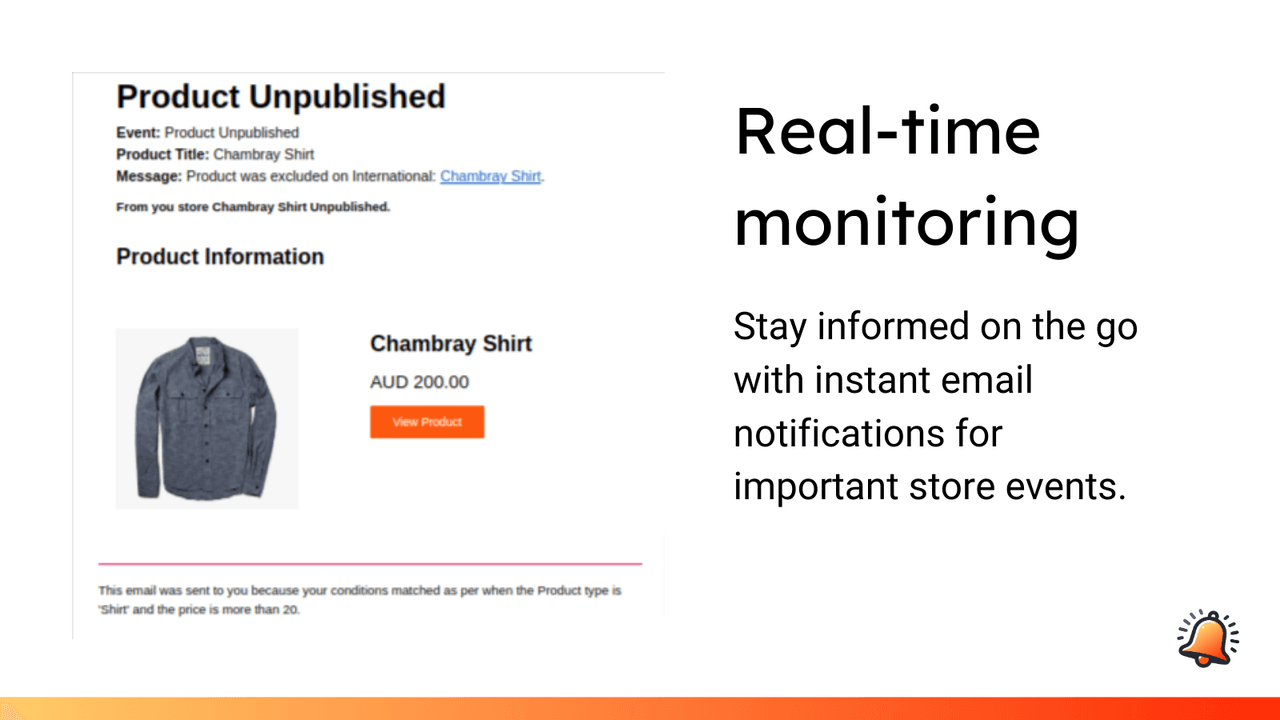
The example email identifies the product and links to it for investigation.
The Shopify listing describes custom notifications triggered by events such as product creation, deletion and price changes. The message contains relevant event details. The useful distinction is between recording a change and sending a notification about a selected change.
The documentation asks merchants to create notifications after installation and ensure they are activated. It also says the recipient's email address must be present in the notification settings. A correct event selection cannot compensate for an inactive notification or a mistyped address.
For a first setup, choose the event, identify the recipient and review the message the team receives. Use a controlled change in the store to check that the notification reaches the intended mailbox and contains enough context to investigate. That is a recommended acceptance check, not a claim that we have tested this store's setup.
Do not write a notification as if the event already proves a problem. A price change may be intentional. An order status update may be part of ordinary fulfillment. The message should help the reviewer find and assess the change, rather than presume an error or blame a staff member.
Give each alert a clear owner
The official introduction describes adding multiple recipient emails inside a notification's email field. That can help several people see the same event, but visibility is not the same as accountability.
Agree on who takes the first look. If a shared mailbox receives a product-change email, somebody still needs to decide whether the update is expected, whether a customer-facing page needs checking and whether another team should be involved.
From notification to action
StoreAlert
Records supported events and sends configured email notifications. Its role is to make the selected change visible.
The reviewer
Checks the affected record and compares the change with the team's intended work. A notification is a starting point for that review.
The responsible team
Makes any necessary correction or follows up with the person maintaining the data. A correction is a separate action, not an automatic rollback described here.
For routine changes, a light review may be enough. For an unexpected deletion or price, the reviewer may need the promotion plan, supplier feed or catalog process that produced the update. Those records come from the merchant's workflow; the notification does not establish the cause by itself.
Use event history to narrow the question
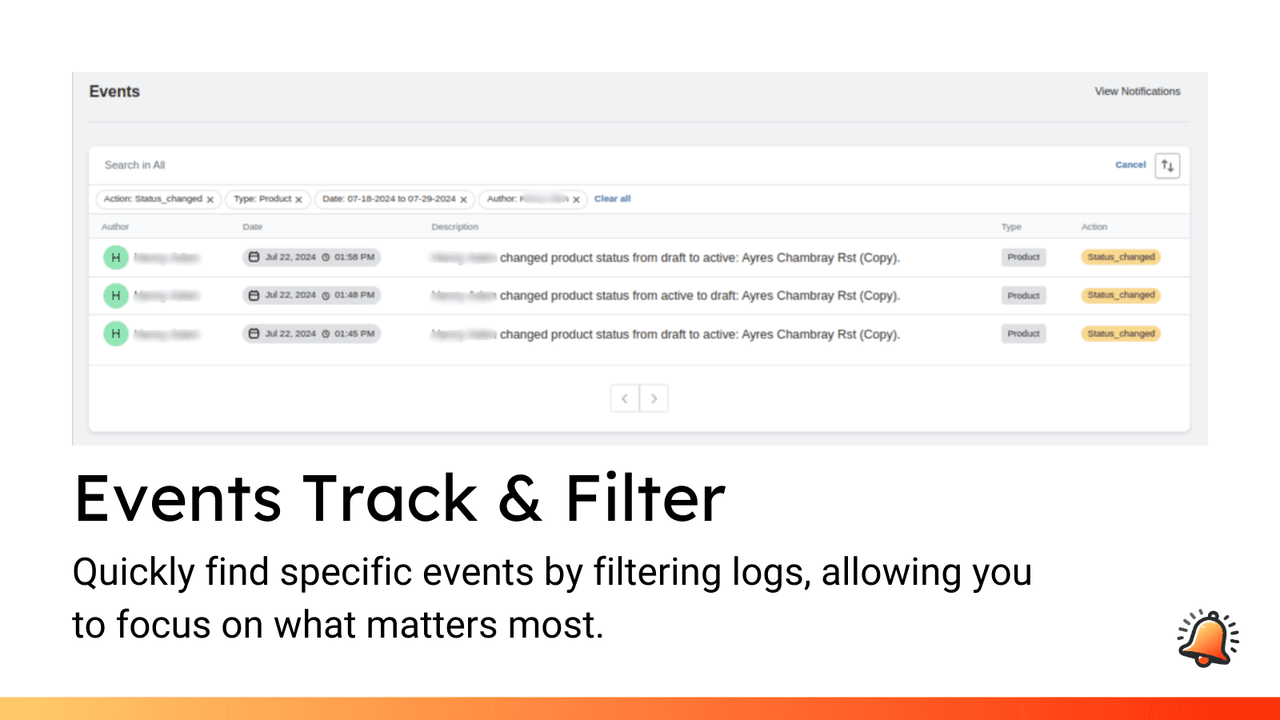
Filters narrow the event list to the change the team needs to review.
The listing includes browsing and filtering store events. That is useful when the team knows something changed but needs to find the relevant record rather than search an entire inbox.
Start with a specific question: which product changed, what kind of event occurred and what time period matters? Compare the resulting event with the current Shopify record. A history view and a live product page serve different purposes: one points to a change, while the other shows the customer's current experience.
Do not present the event view as a complete, permanent compliance audit or a backup. The sources reviewed here do not establish a retention period, guaranteed actor identification or a restore function. Those would be different capabilities requiring their own documentation.
The official FAQ also says notifications do not cover events that happened before installation. Installing the app now should not be described as recovering a historical archive of changes from before the connection existed.
Keep notifications useful during busy periods
An alert should arrive where its recipient can act on it. Check mailbox routing as part of setup: the right email address is only useful if the team actually sees messages there. If an expected notification is missing, the official guidance is to check activation and the recipient field first.
Next, consider whether the event selection matches the task. A product team that needs price changes may not need every routine description edit. A content team preparing a launch may temporarily care about page changes that are less important during an ordinary week.
StoreAlert's documentation includes settings for notification toggles and event capture choices. Review those settings when responsibilities or campaigns change. This article does not infer Slack, SMS or a specific batching behavior from category tags alone; the documented channel discussed here is email.
Pricing and access: separate the current listing from older docs
The App Store listing, checked October 7, 2026, shows the app as free. The documentation describes a seven-day trial and older limits, which do not clearly match that listing. We therefore do not publish those older limits as the current free plan's allowance.
Before rollout, confirm the notification limits, event coverage and any paid terms shown in the app. Likewise, review the requested Shopify permissions during installation. A permission allowing access to a data category is not proof that every action within that category is captured in the event history.
For a small first deployment, prioritize one important event and the people who need it. Expand once the team has a reliable way to review messages. This makes the notification useful without pretending that turning it on completes the operational process.
Frequently asked questions
What kinds of changes can StoreAlert monitor?
Its listing highlights product creation, deletion and price changes. Official feature documentation also describes product updates, order events, theme changes and store content events. Confirm the current choices in the app for your setup.
Where are notifications sent?
The documented flow sends email notifications to recipients configured in the notification settings.
Can it notify me about changes before installation?
The official FAQ says no. It covers upcoming events after installation rather than recovering earlier notifications.
Does an alert automatically undo the change?
No automatic restore capability is established by the sources reviewed for this article. Reviewing and correcting a change remain separate tasks.
Explore StoreAlert on Shopify and its official documentation. The best first alert is one that reaches a named reviewer and leads to a clear decision—not simply another message in the inbox.